

Website is available in all plans. Limits differ per plan, for more information, check our Pricing page.
Adding a Website Source
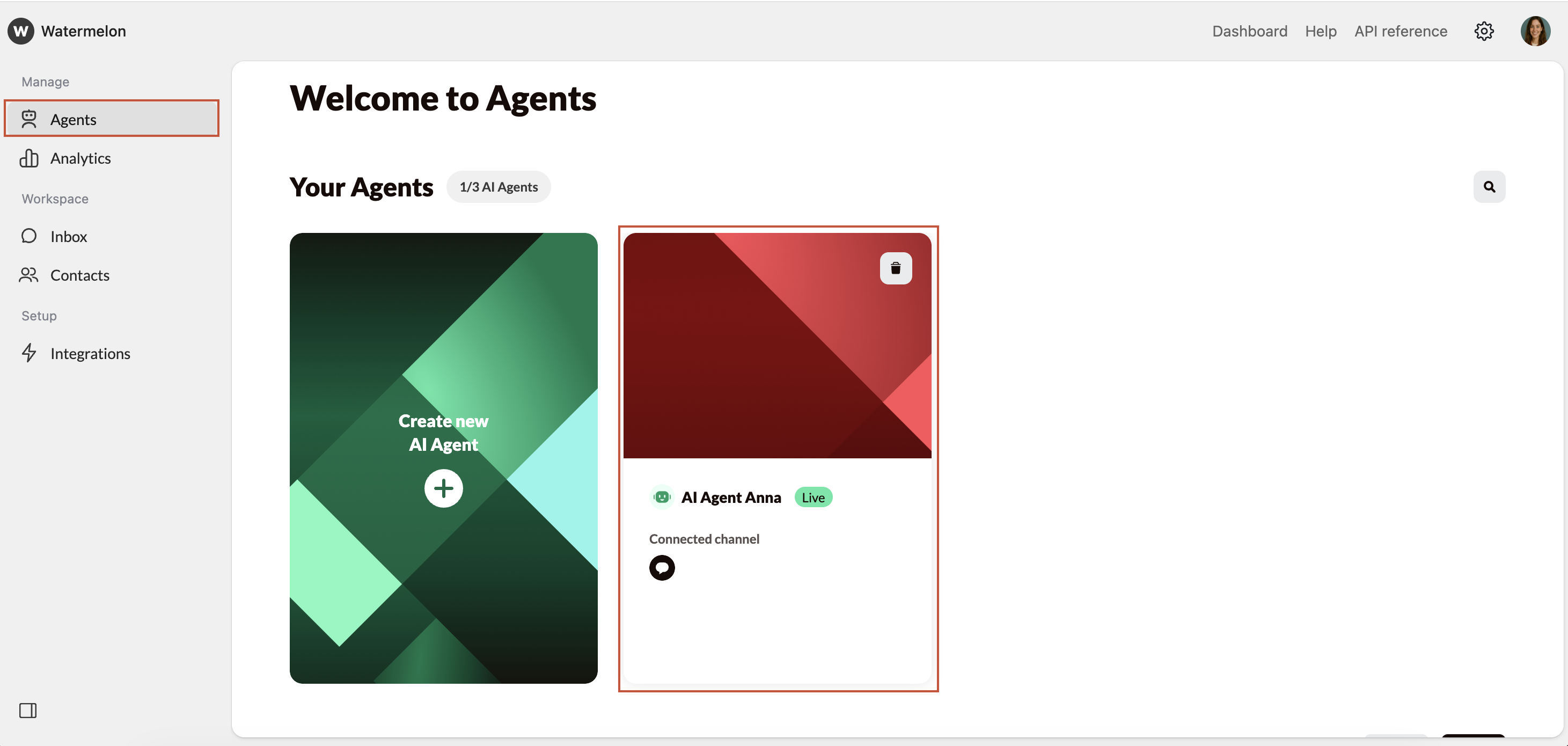
Navigate to Website
In the Agent menu, click Website to view your website settings, URL list, and crawling options.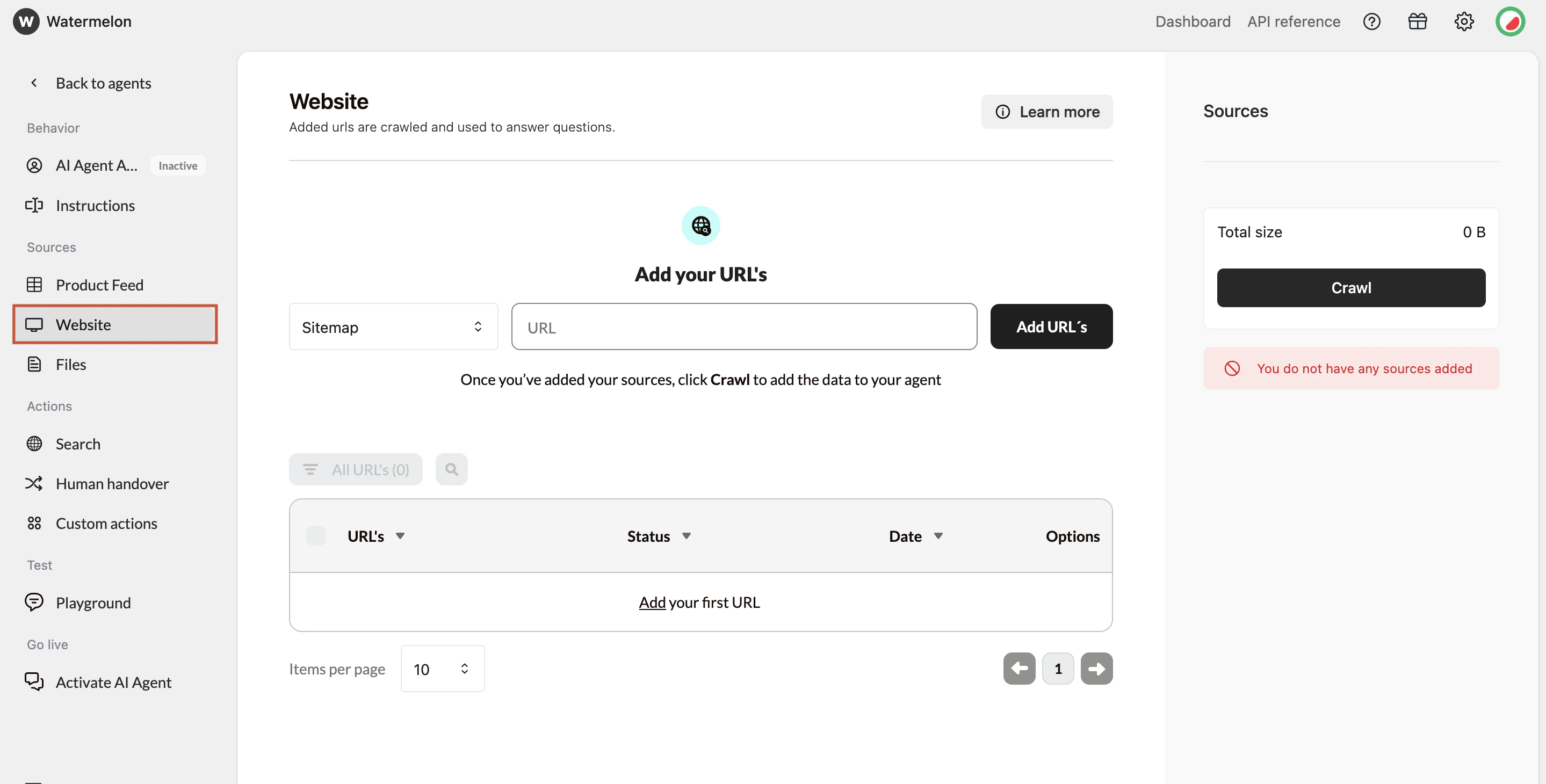
Fetch URLs
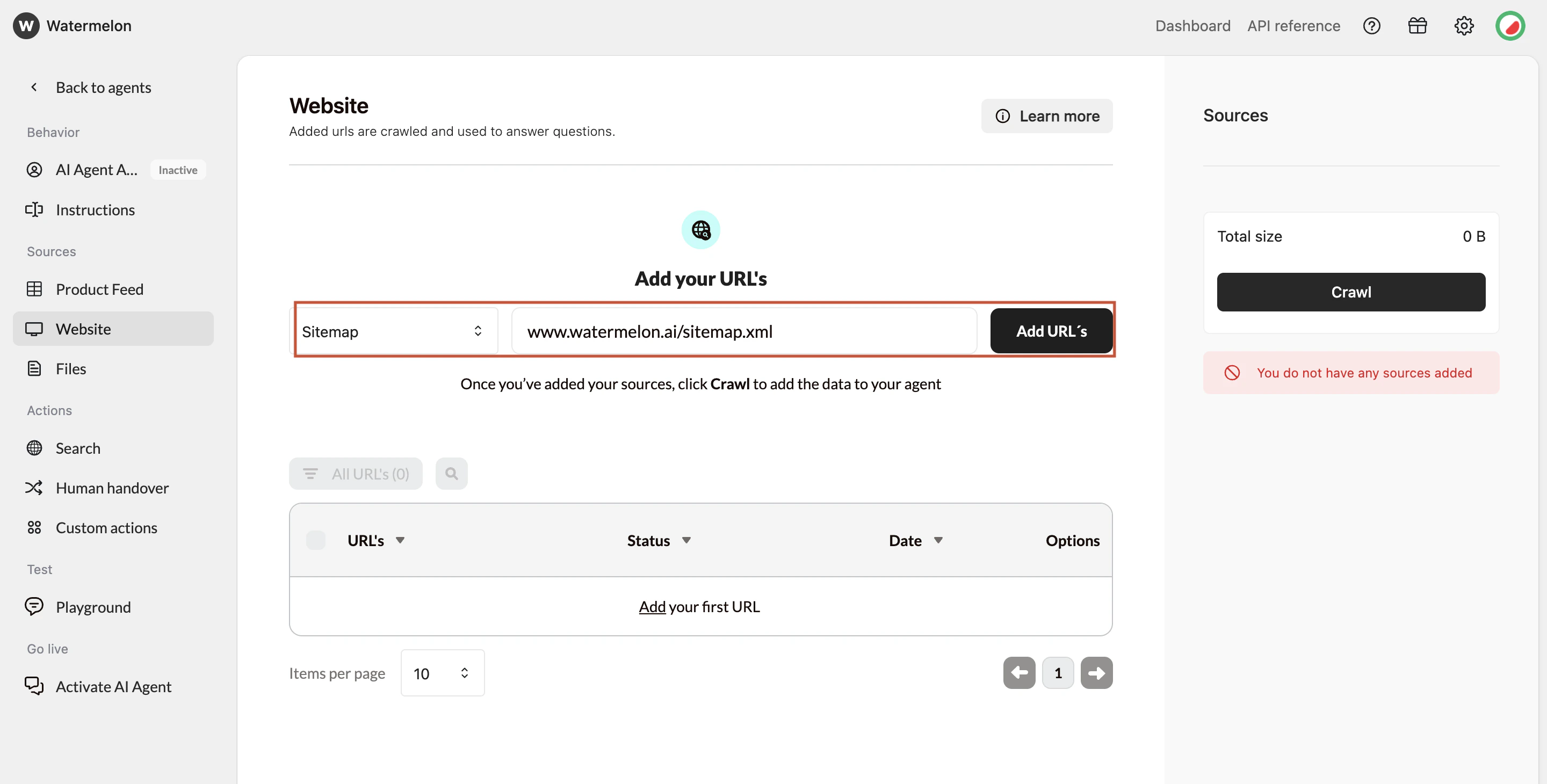
- Option A: Add your sitemap (recommended)
- This gives the most complete list of URLs. Enter your sitemap URL (without a trailing slash):
- Option B: Fetch URLs from your root domain
- Add your homepage (e.g., https://website.com) and the system will attempt to discover pages across the site.
- Option C: Add URLs manually
- Use this for specific pages you want to include without crawling the whole site.
- The URL
- The date added
- Status indicators
- Toggles for including/excluding and for link-sharing
Customize URL usage
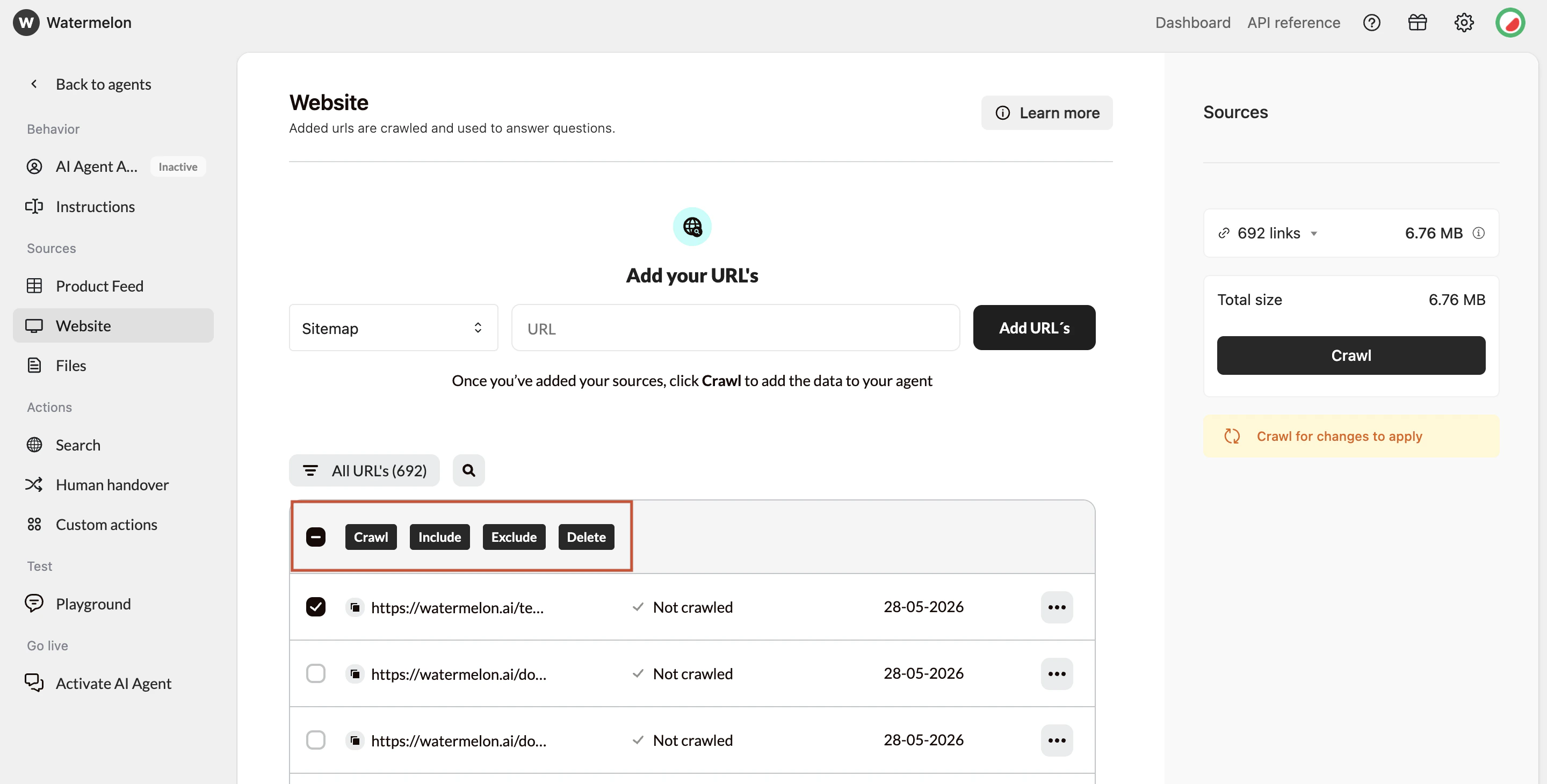
- Include → content will be added to the AI Agent
- Exclude → page content will be ignored
- Delete URL → Removing a URL also removes its stored content.
Crawl Agent
Once your URLs are prepared, select Crawl to update your Agent.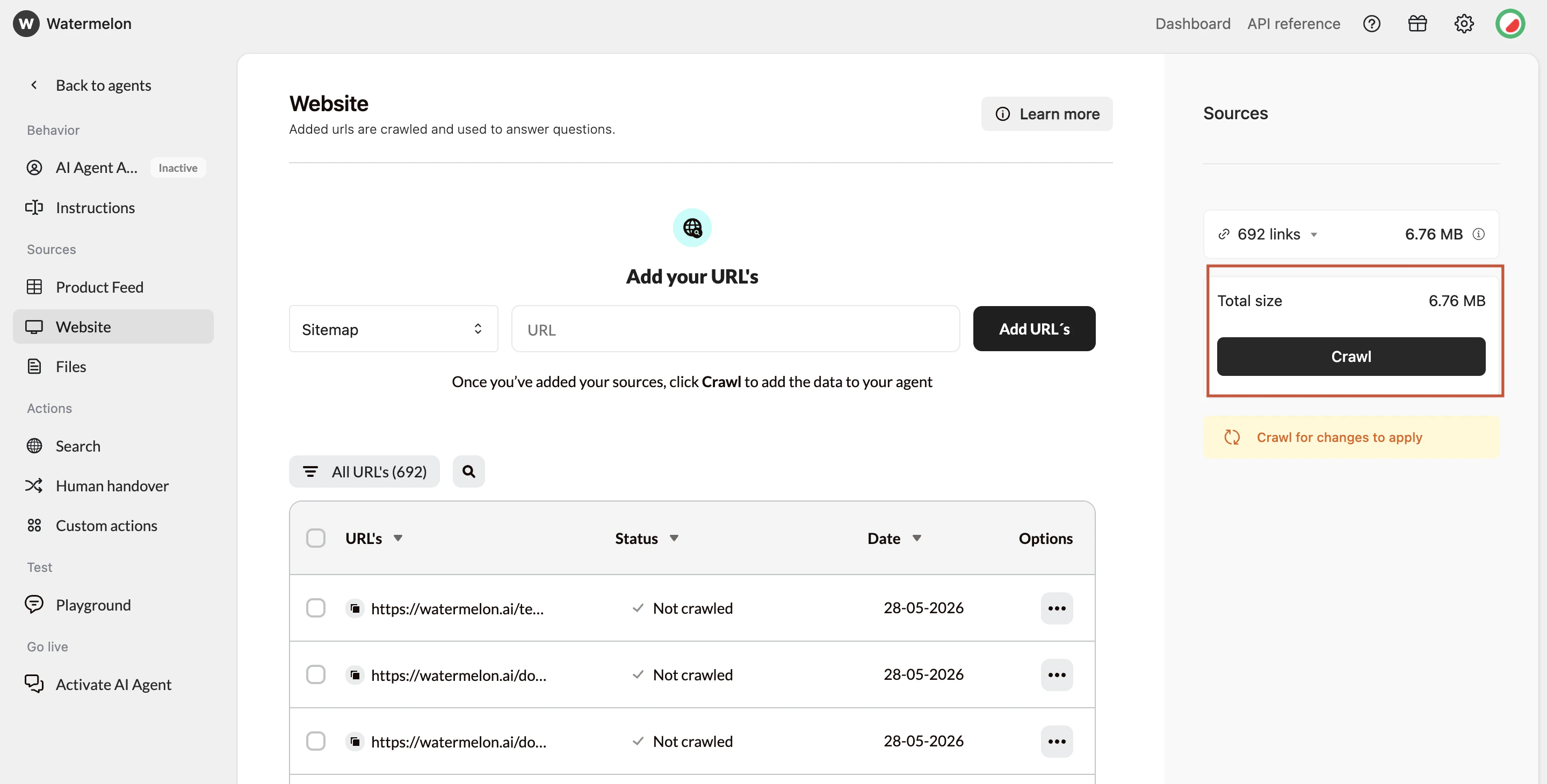
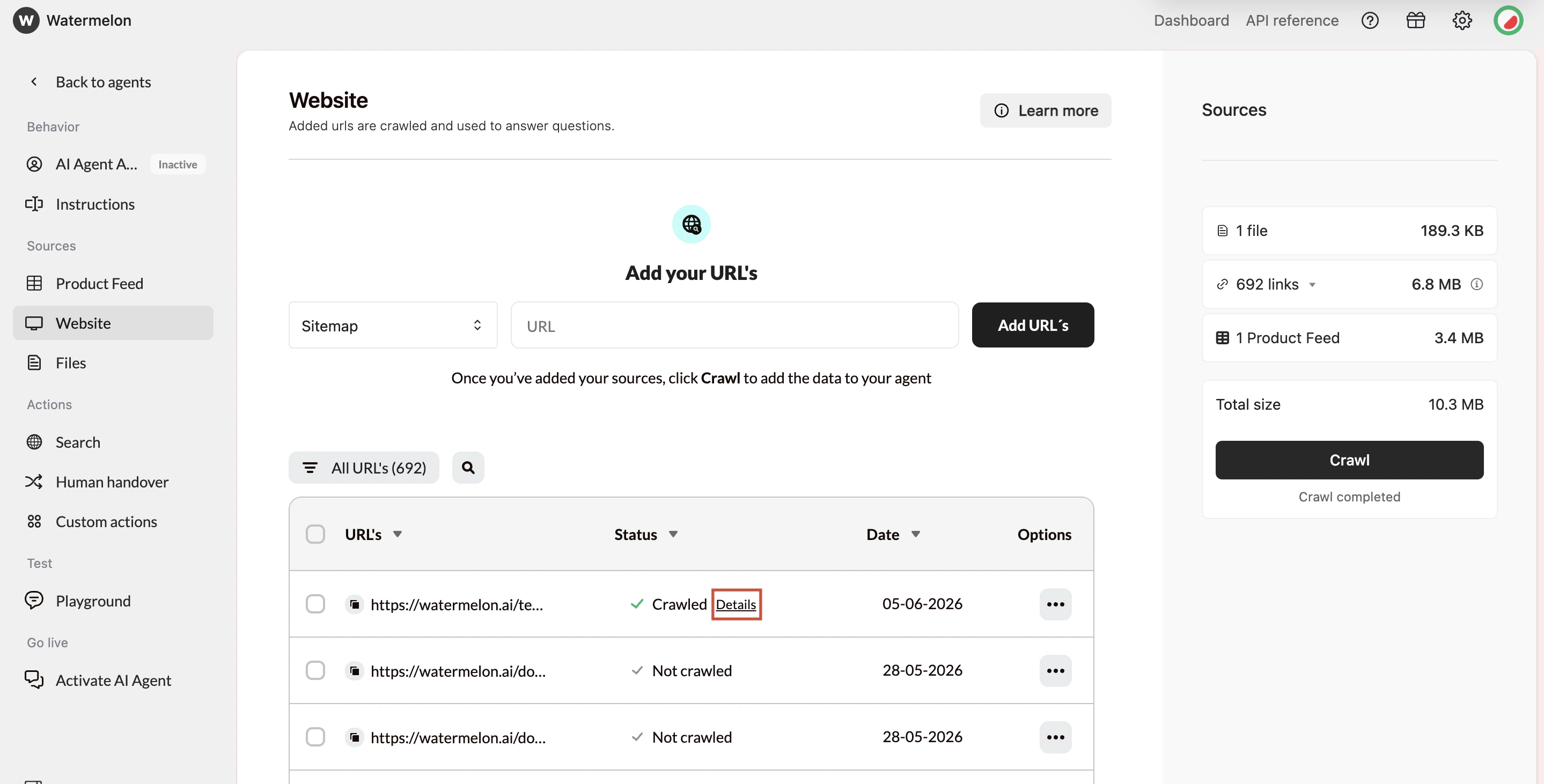
Crawl statuses
- Crawled – Content added successfully
- Not Crawled – Not processed yet
- Queued – Waiting to be processed
- Excluded – Skipped by your choice
Important behavior notes
- The crawling process may take up to 24 hours to complete
- You do not need to stay on the page or stay logged in; the crawling process will continue automatically
- Failed pages will be retried up to 50 times before marking a URL as failed
- If crawling a sitemap or domain finishes within seconds, it may indicate access issues or a technically difficult site.
- If progress appears stuck at 90–100%, the system is still retrying a small number of slower or temporarily unavailable URLs.
Troubleshooting
Common reasons a URL cannot be crawled include:- robots.txt restrictions
- The page blocks crawlers.
- Incorrect or inaccessible URLs
- Typos, wrong protocol, or pages that do not load.
- Anti-bot protection
- CAPTCHAs or bot detection systems block access.
- Server errors
- 404, 500, 504, or temporary downtime.
- IP or geographic restrictions
- Some sites block scraping or certain regions.
- Server overload
- Too many requests can cause timeouts.